Available on staging. This guide describes the Message Hub currently available in the Inventory Ahead staging environment. Production availability may differ.
What Message Hub helps you do
Message Hub brings imported mailbox conversations into one place, with status filters, a search box, order context, and reply controls.
Open your inbox
- Sign in to Inventory Ahead staging.
- Choose Messages from the left menu. If it is missing, ask your administrator to check your Messages permission.
- Choose Settings to connect a mailbox, or Manage your mailbox if the inbox is empty.
Find the conversations that need attention
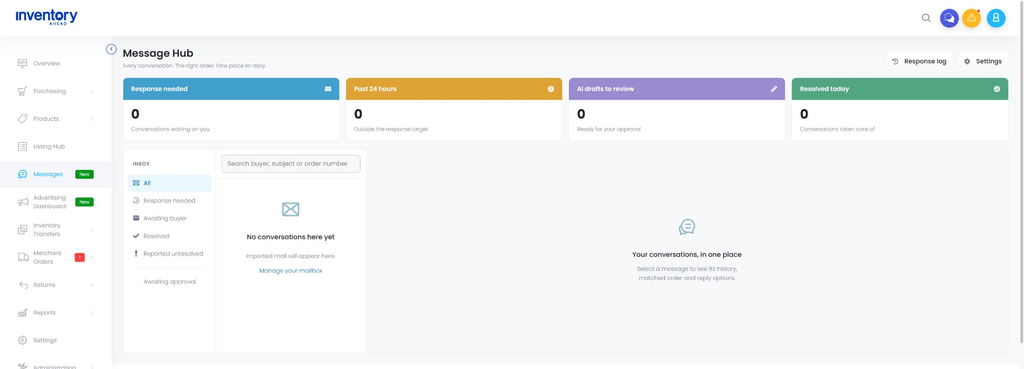
The summary cards show conversations needing a response, those past the 24-hour target, AI drafts to review, and conversations resolved today. Use the inbox filters to switch between All, Response needed, Awaiting buyer, Resolved, Reported unresolved, and Awaiting approval.
Search by buyer, subject, or order number. Select a conversation to read its history and review its matched order and reply options.
Understand order and store matching
When an email contains one unambiguous order number and it matches an order in your organization, Message Hub uses that order to identify the store. If the match is ambiguous, do not assume the message belongs to a particular store. Review it before replying.
An optional default store can be set per mailbox for messages without an order number. One mailbox can serve multiple marketplaces, or you can connect separate mailboxes.
If the inbox is empty
- Open Settings → Mailboxes.
- Use Test to check mailbox access, then Check now to request an import.
- Check that the sender/recipient filter and import-history window include the messages you expect.
- Review any connection error. A successful connection test alone does not mean there are matching emails to import.
Screenshot: Message Hub on staging, showing the summary cards, conversation filters, search, and mailbox settings link.