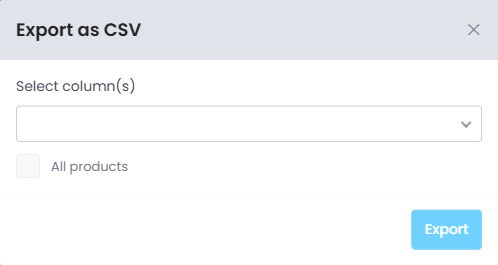
Available on staging. You can export product-level rows after opening a supplier, brand, or variation in the Profit Report. This helps you review the details in a spreadsheet.
Open the details you need
- Go to Reports → Profits.
- Select the store and date range you want to review.
- Choose a grouping, such as Group by Brand or Group by Supplier.
- Click the relevant row to open its product details.
- Set any search, filters, and sorting before exporting.
Choose columns and export
- Click the download icon near the report heading. Its tooltip is Export as CSV.
- Under Select column(s), choose the columns to include.
- Leave All products unchecked to export the current page, or check it to include the full matching result set.
- Click Export and open the downloaded CSV in your spreadsheet application.
Understand the file
The detail export writes money amounts as plain numbers with two decimal places. It does not add a dollar sign to every amount. Check the store and its currency before comparing or totaling results from different stores. A Store value of Multiple means that row spans stores.
If the export does not start
- Select at least one column. Export stays disabled while no columns are selected or the report is loading.
- Wait for the report to finish loading, especially when exporting all products.
- If loading fails, retry after the report is available. Do not treat a missing download as an empty report.
- If you changed the store, date range, filters, or sorting, confirm the displayed results before exporting again.
The screenshot shows the Export as CSV dialog before columns are selected.